1.4.1.11 string
GUI Control String
Edit
If the control string is empty, then the control is set to be Edit.
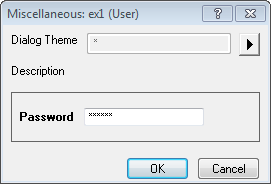
Password
We can use the control string:
- password
set the control to password edit box, in which input is enciphered.
An example in a dialog:
Edit with Button
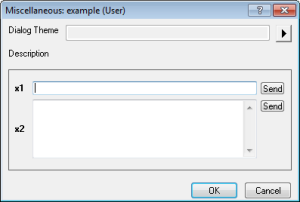
There are two types of Edit with Button: Single line and Multiple lines.
- Single line
- Control string: button text..users
- Multiple lines
- Control string: button text..user
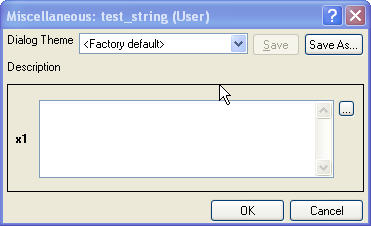
An example in a dialog:
ComboBox with Button
We can use the control string:
- button text..user|:|string1|string2|string3
set the control to ComboBox with Button.
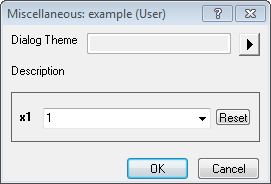
The string between .. and |:| is for button mode. There're some pre-defined strings can open the corresponding browser dialogs. Please refer to the control strings mentioned below
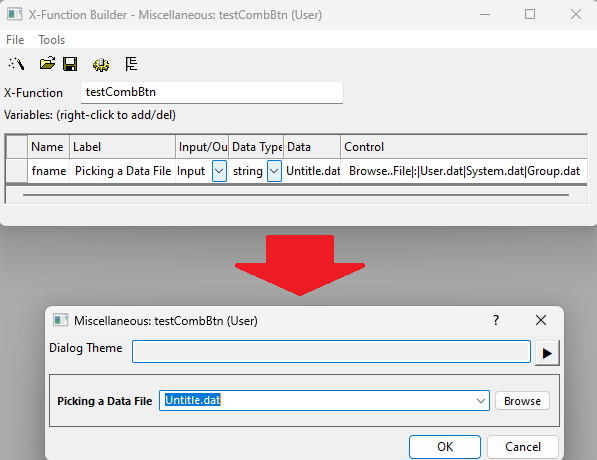
Here is an example to add button as Flyout menu:
- New the following X-Function:
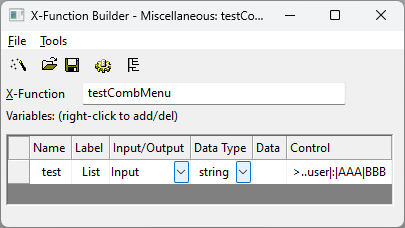
- Click the button: Edit X-Function in Code Builder
- Add these codes to testCombMenu_event1
//on click the ">" button
	if(ONODETYPE_BROWSECOMBO == nEventID && lstrcmpi(lpcszNodeName,"test") == 0)
	{
		//show a menu
		Menu myMenu;
		myMenu.Add("Item1", 1, MF_STRING);
		myMenu.Add("Item2", 2, MF_STRING);

		int nSelCmd;
		POINT pt;
		GetCursorPos(&pt);
		myMenu.TrackPopupMenu(0, pt.x, pt.y, DynaCntrlContainer.GetSafeHwnd(), &nSelCmd);
		if(nSelCmd > 0)
		{
			string strName;
			myMenu.GetMenuString(nSelCmd, strName, MF_STRING);
			trGetN.test.strVal = strName;
		}
	}
- Click Compile, Return to dialog and Save. Then run testCombMenu -d in Command Window to see the dialog
Browser
Several pre-defined browser dialogs can be opened for a string type variable. In the X-Function dialog, a button labeled with ... will be added in the edit box of the string variable.
1. Single file / multiple files browser dialog
We can use the control string:
- ...File
or
- ...Files
to set a single file or multiple files dialog.
To this dialog, you can specify the default file extensions by these two strings:
- :[Description1]*.ext1|[Description2]*.ext2|[Description3].ext3...
or
- :groupname
Note: Origin has defined some file extension groups, which can also be directly used.For example:
- Image will include all images file types that Origin supported, *.ai, *.bmp, *.cgm,*.eps, *.jpg...
ASCII will include *.dat, *.txt, *.csv.
...Files:Image
- Origin will include all Origin file types, *.opj, *.org, *.ogw, *.ogg, *.ogm, *.txt, *.dat, *.csv.
Samples will include all programming related file types in Origin, *.opj, *.c, *.cpp, *.h, *.ogs.
...Files:Origin
- To auto-open the browser dialog on the initialization of the X-Function dialog
Add ? before the colon of the file extensions.
...Files?:[Text file (*.txt)]*.txt
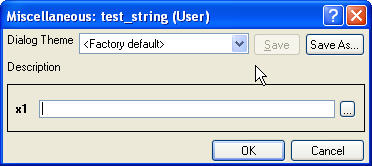
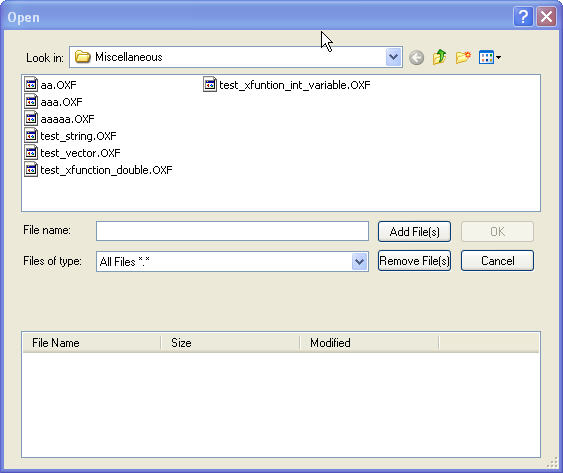
The Examples of file/files open dialog is as follow.
- Single file open dialog: ...File
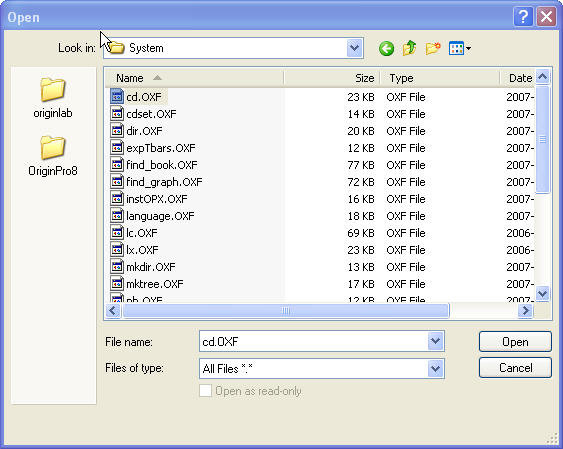
- Multiple files open dialog:...Files
2. Save As Dialog
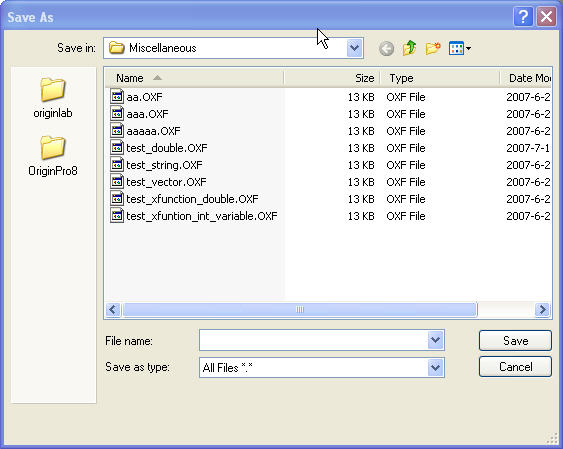
We can use the control string:
- ...Save
to set a save as dialog.
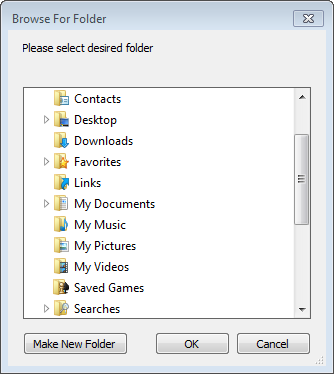
3. File path Dialog
We can use the control string:
- ...Path/...Path2
to set a file path dialog.
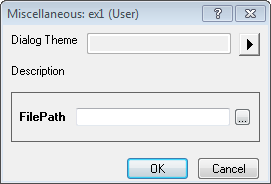
...Path to open the select folder dialog
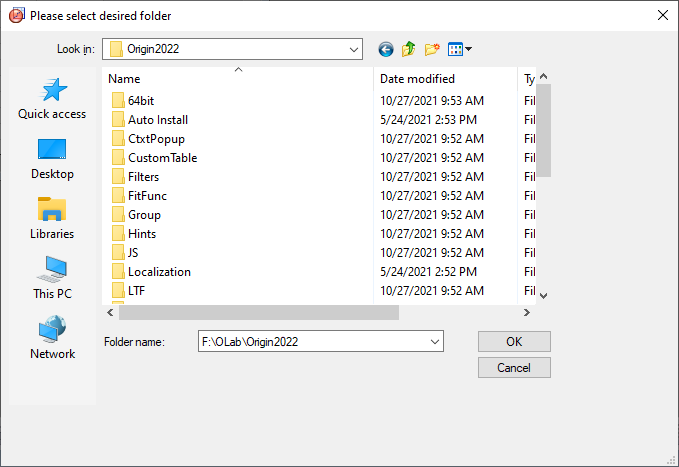
...Path2 to open the browse folder dialog
|
Note: Set system variable @FBL = 0 will toggle new/old folder browser, i.e. ...Path to open the browse folder dialog, while ...Path2 to open the select folder dialog.
|
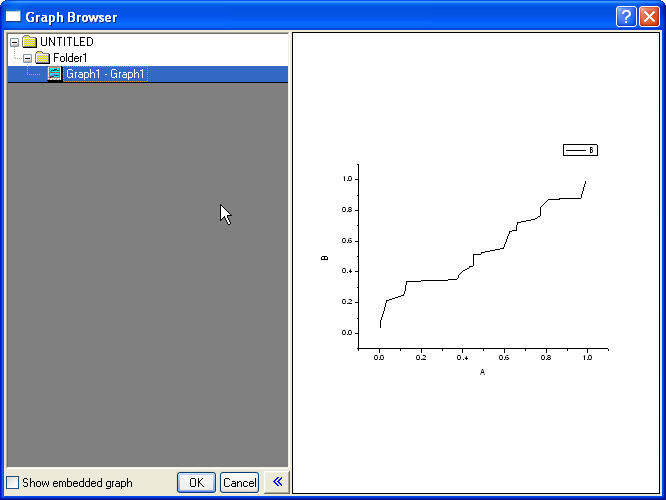
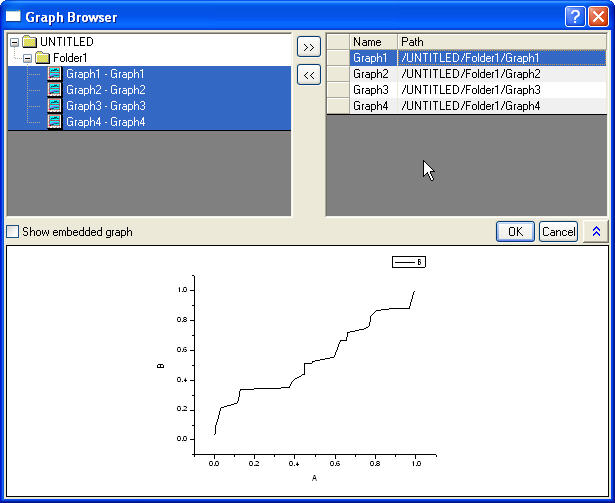
4. Single graph/multiple graphs Dialog
We can use the control string:
- ...Graph
or
- ...Graphs
to set a single graph or multiple graphs dialog
The Examples browser dialog for single graph / graphs in current Origin project.
5. Dialog for selecting single worksheet/multiple worksheets
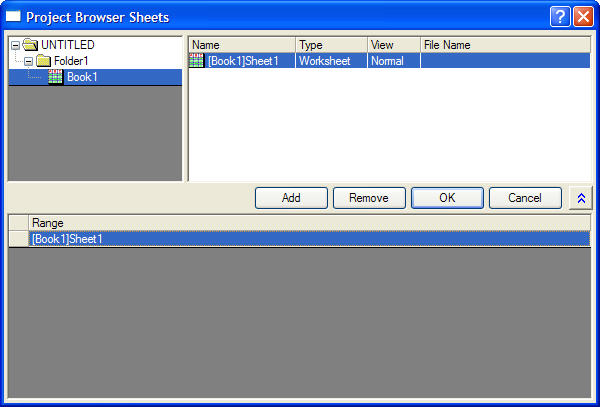
We can use the control string:
- ...Sheet
or
- ...Sheets
to set a dialog for selecting single worksheet or multiple worksheets.
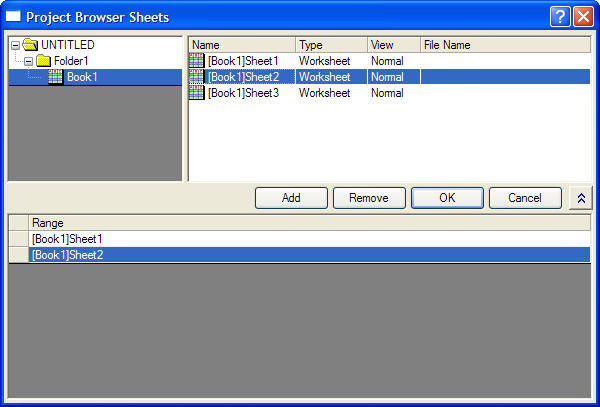
The example of browser dialog for selecting single worksheet/multiple worksheets in current Origin project.
6. Dialog for selecting single report sheet/multiple report sheets
We can use the control string:
- ...Report
or
- ...Reports
to set a dialog for selecting single report sheet or multiple report sheets.
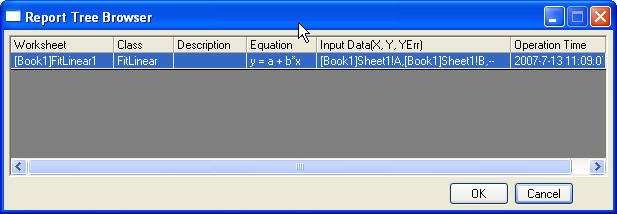
The examples of browser dialog for selecting single report sheet/multiple report sheets in current Origin project.
Variable Value Data
You can set the default data in Data field of the X-Function Bulider.
| Variable Data |
Input |
Output |
Input/Output
|
| <unassigned>
|
The default value set to be empty value.
|
The variable value set to be empty Value. And there is a <Auto> checkbox before the control. If it is checked, then the result variable value can be output. Else, the result variable value will not be output.
You can set the optional string U:n(n>=2), let the checkbox not visible.
|
The variable value is set to be empty value.
|
| Splicified value
|
The default value set to be the splicified Value.
|
do nothing.
|
Set the the splicified value as input.
|
| LabTalk Variable Name
|
The default value set to be the LabelTalk variable value.
|
The variable result value will be put into LabTalk variable.
|
The variable value can be got from the Labtalk Variable Name. After Execution, the result value will be put into the Labtalk Variable.
|
Supportted Option String
- A:-------Recalculate
- G:-------Group
- T:-------Last Used Theme
- U:-------Output
- V:-------Visible
- Z:-------Auto Support
You can see the more detailes in Option Strings
|