<testmenu1 Label = "OC Guide Tools" popup = "1">
        <efg Label = "">
            <name>*</name>
            <auxopts>2162688.</auxopts>
            <catsubcat DataID = "74">OC Guide</catsubcat>
        </efg>
</testmenu1>
Putting an X-Function into the Origin menu involves the following two steps:
Then, in the menu, choose Preference: Menu: Full Menus, or restart Origin to auto-scan the changes for all X-Functions and add the newly added X-Function to the menu. Please refer to X-Function Builder's documentation for more details.
To make your X-Function show properly in the menu, the following settings in X-Function Builder are required:
Once the X-Function is set up in Tree View, you can put the X-Function into the specified menu. Origin enables the user's X-Function to be accessible from the two kinds of menus:
(This mechanism has a few limitations: you need to put the X-Function into the specified file folder, and the X-Function name needs to follow the specified prefix. Also, it is not easy to control its location in the menu. The next mechanism, a user defined menu, will solve all these problems.)
X-Functions are accessible from a specified default menu if they are saved in the proper sub-folder of the X-Functions folder under the User folder.
| Folder | Menu |
|---|---|
| Signal Processing\ | Analysis: Signal Processing |
| Spectroscopy\ | Analysis: Spectroscopy |
| Mathematics\ | Analysis: Mathematics |
| Statistics\ | Statistics |
| Folder | Prefix | Menu |
|---|---|---|
| Import and Export\ | imp* | File: Import |
| exp* | File: Export | |
| Data Manipulation\ | w* | Worksheet |
| col* | Column | |
| Database Access\ | db* | File: Database Access |
In addition to adding X-Functions to default menus, the user is able to put X-Functions into user-defined menus by editing the XML files under the OriginExePath\Themes\Menus folder. There are two XML files under this folder: ConfMenus.xml is used to control the Origin main menu, and ContextMenus.xml is for the context menu.
Example
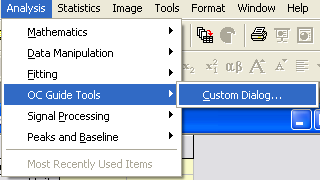
The following is a complete example that shows how to add a user-defined X function to a new sub menu, OC Guide Tools, under Origin's Analysis main menu. The user-defined menu is the mid in Analysis:Fitting and Analysis:Signal Processing.
<testmenu1 Label = "OC Guide Tools" popup = "1">
<efg Label = "">
<name>*</name>
<auxopts>2162688.</auxopts>
<catsubcat DataID = "74">OC Guide</catsubcat>
</efg>
</testmenu1>